
Activating Windows — the complete guide
Start with online activation — it's fast and automatic. If that doesn't work, use phone activation through our portal. One of these two methods always works.
How to go about it
Follow the order: 1) online activation (this is all most customers need). If online activation fails, move on to 2) phone activation. You don't have to try both — only do the phone method if online doesn't work.
Online activation (try this first)
The fastest way. All you need is an internet connection and your license key.
-
Open Windows Settings
Click Start and open Settings (or press Windows + I).
-
Go to Activation
Windows 11: System → Activation.
Windows 10: Update & Security → Activation. -
Enter your product key
Click Change product key, type in your 25-character license key and click Next.
-
Activate
Click Activate. Windows will try to activate over the internet — give it a moment and keep your computer connected.
-
Check the status
If you see the message “Windows is activated”, you're done — there's nothing else to do. If you get an error, move on to part 2 below.
Activated? You're all set.
If Windows says it's activated, you don't need the rest of this guide. Everything below is only for the case where online activation didn't work.
Online activation failed? No worries at all.
You bought a genuine Microsoft license at a great price — it's a secondary license (used once and legally transferred to you), and it's fully functional. That's exactly why Microsoft occasionally asks for phone activation instead of online for these. It's not a fault or a “lesser” license — it's completely normal, and you'll sort it out in a couple of minutes with the steps below.
Risk-free — instant key replacement
If your key somehow turns out to be blocked during phone activation, our portal issues you a new one instantly and automatically — right there, no waiting and no paperwork. There's nothing for you to sort out; you just carry on.
Phone activation (if online failed)
A backup method that's 100 % reliable. Despite the name, you don't have to call anyone — the whole thing runs through your computer and our portal. Your key is already entered from part 1.
-
Launch the phone activation wizard
Press Windows + R together (the “Run” window opens). Type slui 4 and press Enter.
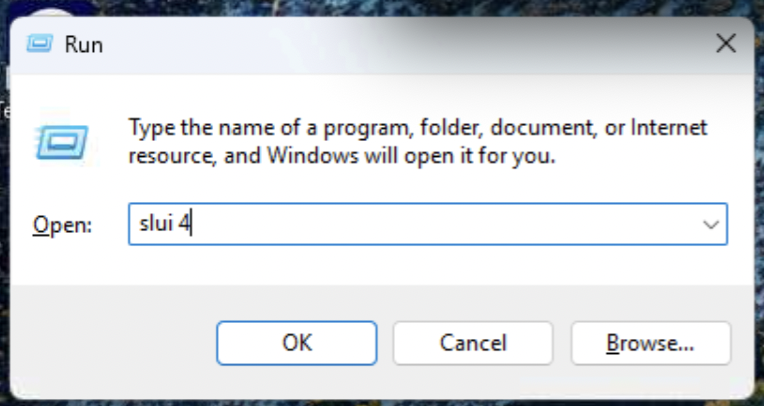
fig. 1 – Running the activation command -
Choose your country
In the window that opens, pick your country from the list and click Next.

fig. 2 – Selecting your location in Windows -
Note down your Installation ID (IID)
The screen will show 9 groups of numbers — that's your Installation ID. Leave this window open, you'll be typing it in.
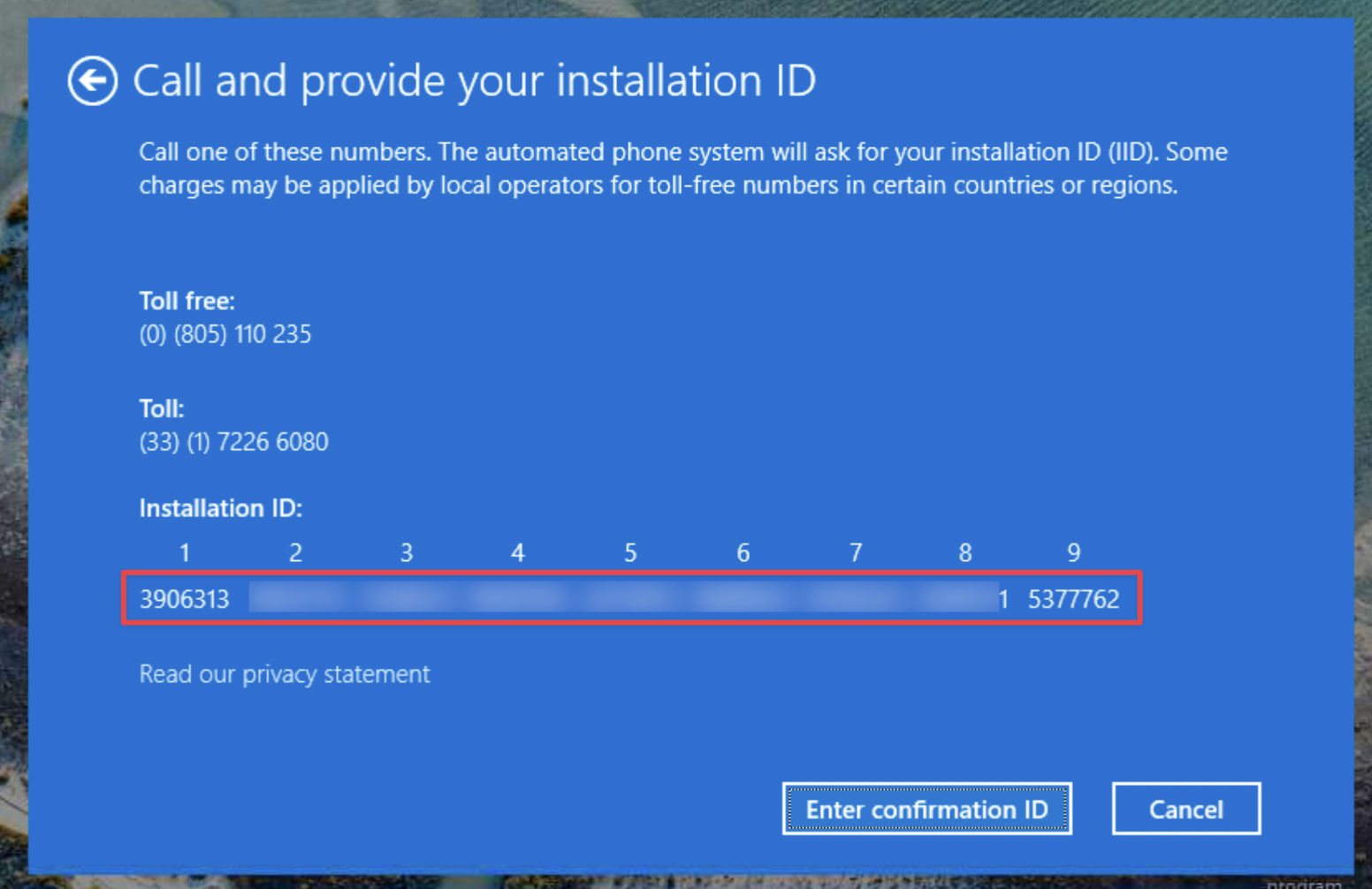
fig. 3 – The Windows Installation ID -
Verify yourself on our activation portal
Open cd-keys.online/phone-activation. Enter your email and license key and click continue.
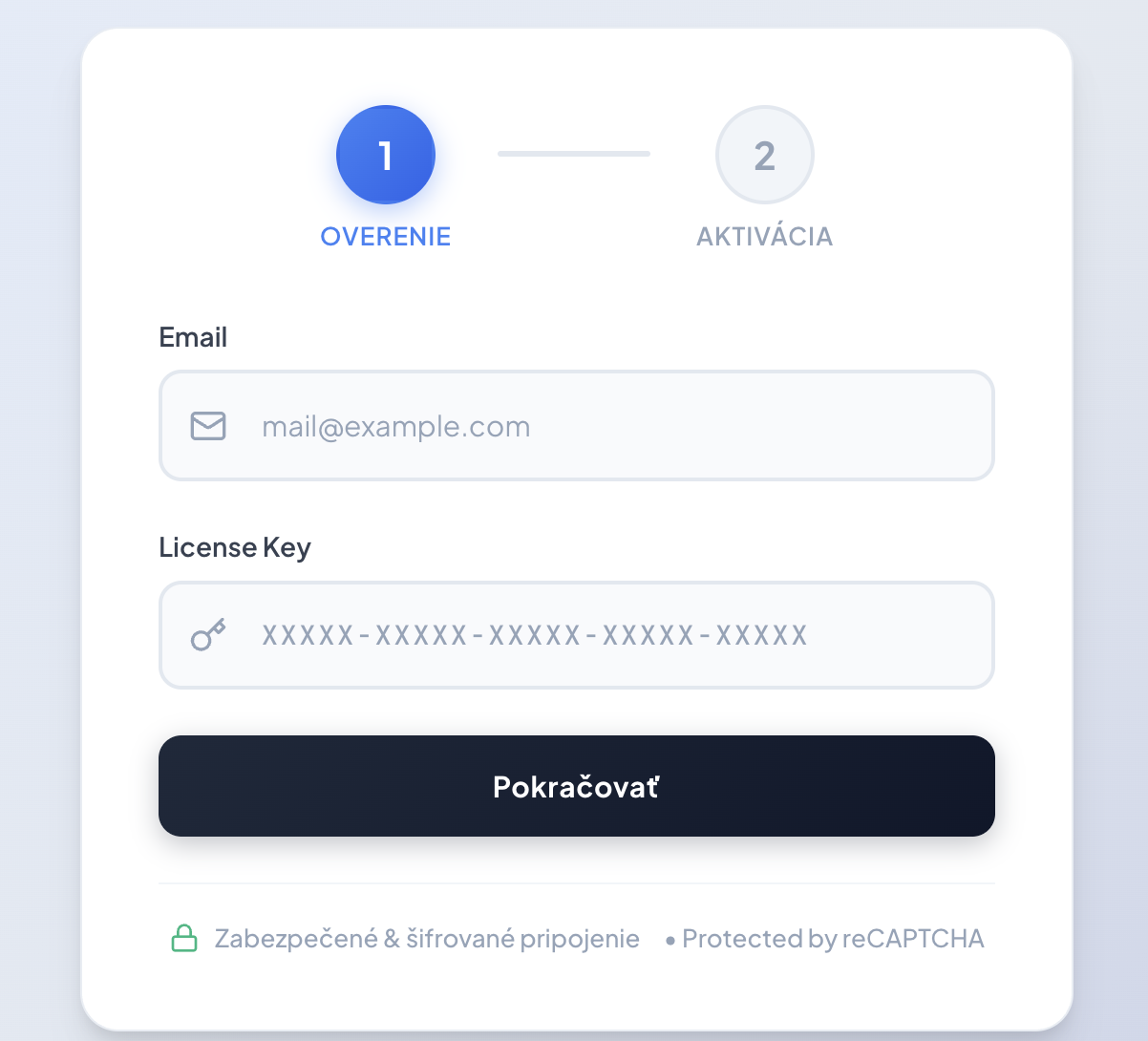
fig. 4 – The first step on the portal -
Get your Confirmation ID (CID)
Type the 9 groups of numbers from the Windows window (the step above) into the fields on our site and click Get Confirmation ID (CID).
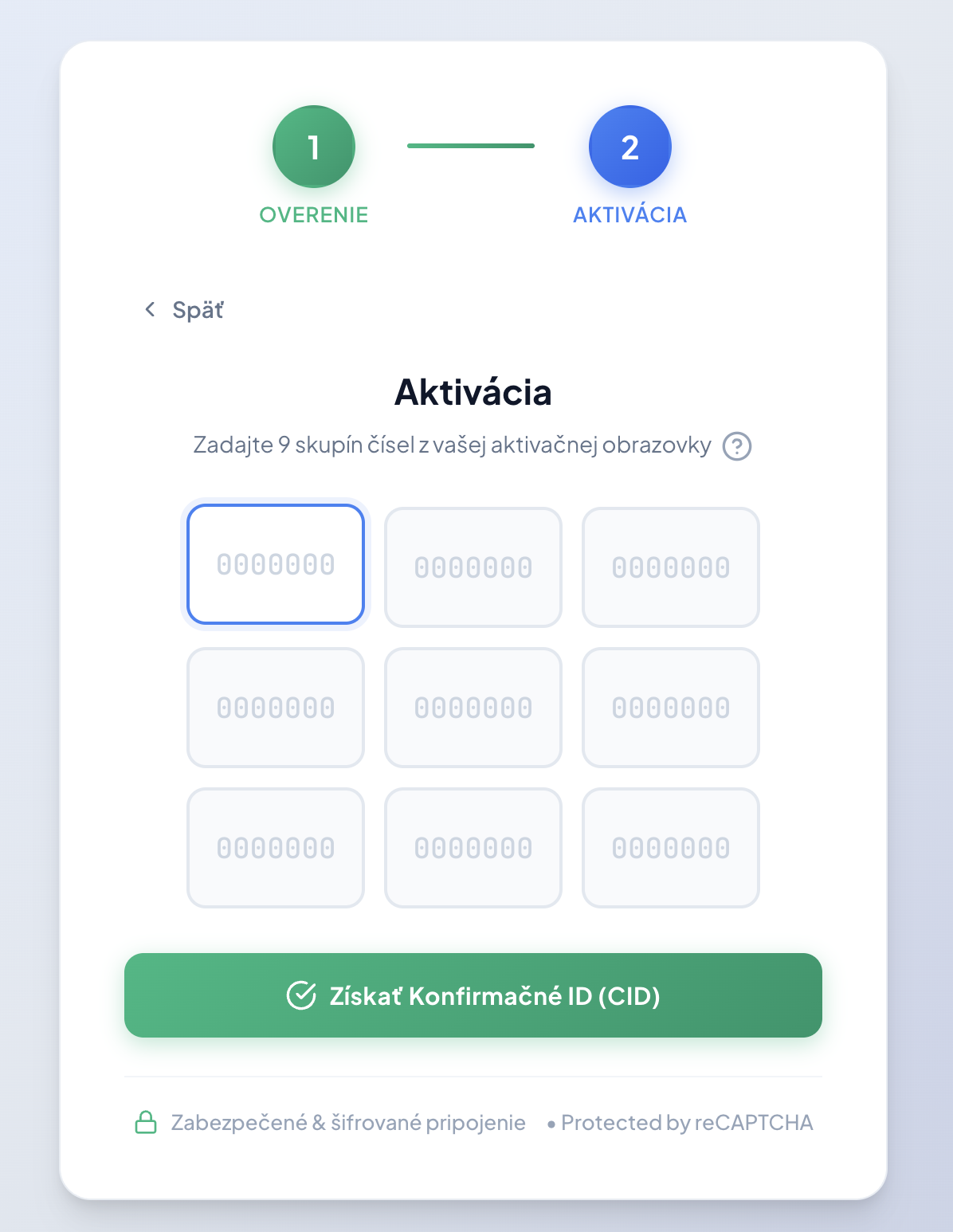
fig. 5 – Entering the numbers into our portal -
Finish activation in Windows
In the Windows activation window, click Enter Confirmation ID. In fields A through H, type the code our portal gave you, then click Activate Windows.
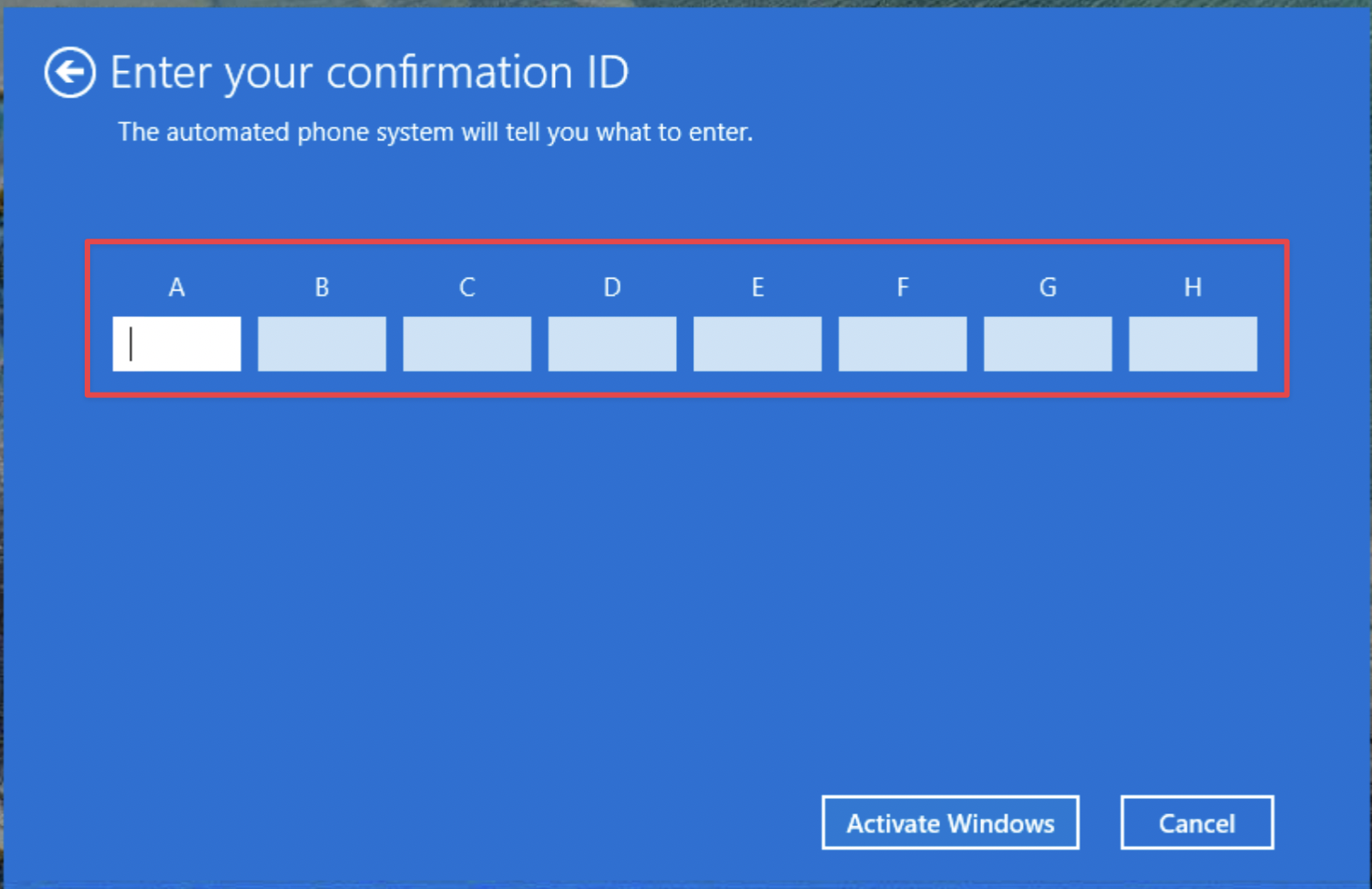
fig. 6 – Completing activation in Windows
Done — Windows is activated!
If something goes wrong, double-check that you copied the numbers correctly (a typo is the most common culprit). If it still won't work, drop us a line at [email protected].
Frequently asked questions
Online activation isn't working for me — now what?
In most cases, phone activation (part 2) through our portal is all it takes and Windows activates. And if the key does turn out to be blocked, the portal issues you a new one instantly and automatically — right during activation, with no waiting.
What does “secondary license” mean?
It's a genuine Microsoft license that has already been used once and then legally transferred to you (perfectly fine within the EU). It's fully functional — the only difference from a brand-new one is that Microsoft sometimes requires phone activation for it instead of online. That's what lets you have it at a much better price.
Do I really have to make a call for “phone” activation?
No. Despite the name, everything happens through your computer and our portal. No call is needed.
The portal didn't give me a Confirmation ID (CID)
Check that you typed all 9 groups of the Installation ID correctly (no typos). If it still won't work, drop us a line at [email protected].
Which method should I use?
Always try online first (part 1). Only use phone activation (part 2) if online fails.